

Voice modulators can make you sound like a robot, a squirrel, or a character straight out of a horror movie. Ultimately, they're a surefire way to fill your servers with laughter, and if you don't know how to install a voice modulator on Discord, here's a guide step by step guide on how to do it.
Although there are multiple voice modulators for discord that you can download, one of the most popular and complete is Voicemod, free, with a paid plan available and a wide variety of sounds to choose from.
Related: Best Music Bots for Discord
1. Download Voicemod
To start, go to the section of Voicemod downloads and register to get the tool for free. Once you have downloaded the file, you will only need to run it and follow the steps indicated by the assistance program until the installation is complete.

2. Set up your input device
Right-click the audio icon in the Windows taskbar, and select Open Sound Settings or access from the Windows search engine by typing sound. Set your input device to “Microphone (Voicemod virtual audio device)”.
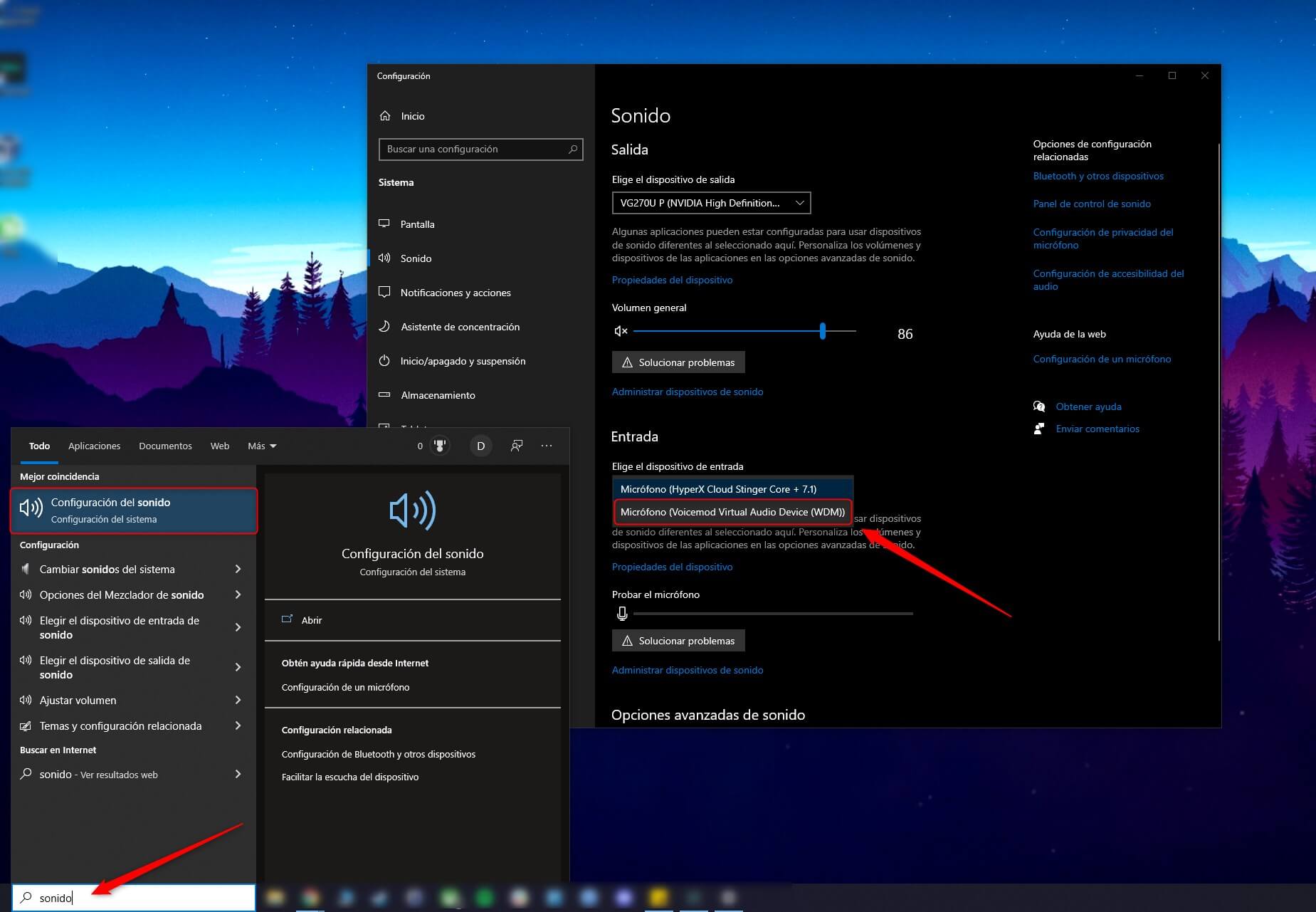
We also recommend checking that the output device is your headset, so that the speakers do not feed back into the microphone. With this, you will have made all the necessary adjustments for the voice modulator to work correctly on your PC.
3. Install Discord on your computer

To get this voice modulator working on your servers It is essential to have Discord installed on the PCIf you haven't already, go to discord.com/download and get the installation file appropriate for your operating system.
Installing Discord is quite simple, you just have to run the file you downloaded and follow the steps indicated by the installation wizard.
4. Set up the voice modulator on Discord
Now you will have to enter Discord and make some configurations to be able to use the voice modulator. First, when you enter your server you will be able to see at the bottom left that Voicemod has already been installed. You will have to click on the symbol User settings and enter the section of Voice and video.
Next, Select “Microphone (Voicemod Virtual Audio Device)” as your input device and check that the output device is your headset so that you can hear your voice with the effects and avoid microphone feedback. However, sometimes Discord may automatically detect the modulation tool; in that case, just press the button that says “Change device”, just as you can see in the image below:

5. Choose voices and effects from Discord's voice modulator
You are now ready to use the voice modulator on Discord, you just have to choose the voices or filters you want to apply to the audio. To do this, Go to Voicemod and choose one of the voices that the tool already offers or create a custom voice changer in VoiceLab.

The voices bring background effects that complement the voice filters with music and sounds alluding to the theme. On the other hand, you can also Select multiple sounds and use keyboard shortcuts to quickly switch voicesThese last few customization steps are entirely up to you.